If you’re after the best trackball mice for precision editing in 2025, I recommend checking out models like the Seenda Wireless Ergonomic, Nulea M512, and Logitech M575, which offer multi-device support, high DPI, and ergonomic comfort. Wired options like Kensington’s SlimBlade also deliver reliable control. Features like large trackballs, customizable buttons, and long battery life make these mice perfect for detailed work. Keep exploring, and you’ll discover even more top contenders for your setup.
Key Takeaways
- Prioritize models with large, high-precision trackballs (around 55mm) for detailed editing accuracy.
- Choose wireless options with multi-device support and reliable Bluetooth or USB connectivity for seamless workflow.
- Opt for ergonomic designs with adjustable DPI settings to customize sensitivity and reduce fatigue.
- Look for rechargeable batteries and long battery life (up to 30 months) to ensure uninterrupted use.
- Consider software-enabled customization like button remapping and macros for tailored editing efficiency.
Seenda Wireless Ergonomic Trackball Mouse for Mac/Android/Windows
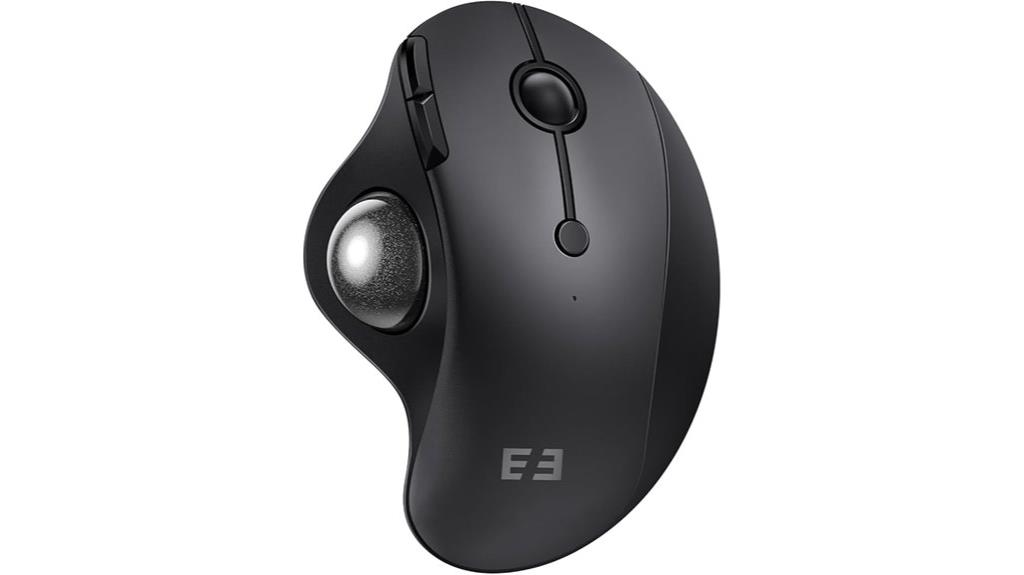
If you’re looking for a trackball mouse that combines comfort with versatility, the Seenda Wireless Ergonomic Trackball Mouse is an excellent choice. Its ergonomic shape fits the natural curve of your hand, reducing strain during long work sessions. The thumb-accessible trackball allows precise, effortless navigation across various surfaces, minimizing hand movement. You can connect it to up to three devices via Bluetooth or a 2.4G USB receiver, making switching seamless. Plus, its rechargeable battery offers extended use without the hassle of disposable batteries. Compatible with Mac, Android, and Windows, this mouse delivers reliable performance across multiple platforms and devices.
Best For: users seeking a comfortable, versatile wireless trackball mouse compatible with multiple devices and operating systems for extended use.
Pros:
- Ergonomic design reduces hand and wrist strain during long sessions
- Supports connection to up to three devices via Bluetooth or 2.4G USB receiver for seamless switching
- Rechargeable battery eliminates the need for disposable batteries, offering convenience and sustainability
Cons:
- Forward and backward functions may not be fully compatible with Mac OS
- Slight learning curve for users unfamiliar with trackball navigation
- May require initial setup to switch between multiple devices smoothly
Wired Trackball Mouse, Ergonomic Design for PC and Mac

For anyone seeking precise control without sacrificing comfort, the wired trackball mouse with ergonomic design is an excellent option. It’s crafted to fit your hand snugly, reducing muscle strain and wrist pain during long sessions. The 44mm index finger trackball enhances cursor control and minimizes arm movement, making tasks more efficient. With a high-performance optical sensor and super sensitive 3-point positioning, it offers spot-on accuracy. Adjustable DPI settings let you customize cursor speed with a simple button press. Plug-and-play with USB A cable, it’s compatible with Windows and Mac, suitable for various surfaces and tight spaces, boosting productivity and comfort effortlessly.
Best For: users seeking an ergonomic, precise, and comfortable alternative to traditional mice for long hours of work or play on PC and Mac.
Pros:
- Ergonomic design reduces muscle strain and wrist pain during extended use
- High-precision optical sensor with adjustable DPI for customizable cursor control
- Plug-and-play compatibility with various surfaces and devices without the need for drivers
Cons:
- Wired connection may limit mobility compared to wireless mice
- Slightly larger size might not suit users with very small hands
- Limited to five preset DPI levels, which may not cover all precision needs
Nulea M512 Wireless Trackball Mouse
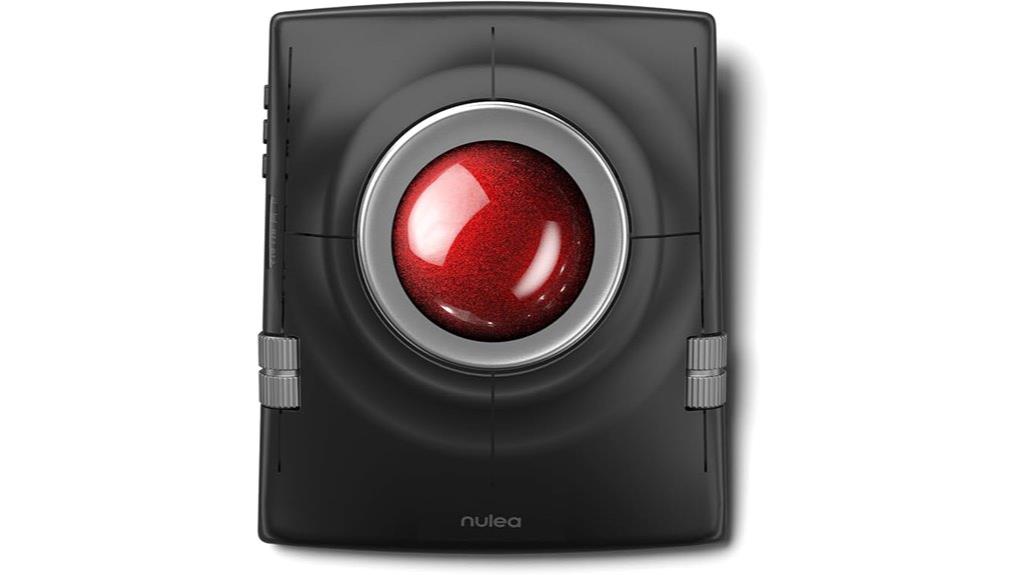
The Nulea M512 Wireless Trackball Mouse stands out as an ideal choice for users who prioritize ergonomic comfort and multi-device flexibility. Its ambidextrous design easily switches between left and right-handed use, making it versatile for any user. The large 55mm trackball offers precise control, perfect for detailed editing or creative work, while the space-saving form works on any surface without a mouse pad. With adjustable DPI settings and support for up to three devices via Bluetooth or USB, it simplifies multitasking. Its sturdy build, tactile buttons, and included wrist rest make it comfortable for long sessions, though some may find cleaning the socket challenging.
Best For: users seeking an ergonomic, space-efficient trackball mouse with multi-device connectivity for creative work, long sessions, or multi-machine workflows.
Pros:
- Ergonomic ambidextrous design reduces strain and supports long hours of use.
- Large 55mm trackball offers precise control suitable for detailed editing and creative tasks.
- Supports up to three devices via Bluetooth or USB, enhancing multitasking flexibility.
Cons:
- Larger size may be less portable and less suitable for small hands.
- Cleaning the trackball socket can be difficult and time-consuming.
- Limited button reprogramming options and some software compatibility issues, especially on Linux.
Kensington Wired SlimBlade Trackball Mouse (K72327U), Black

Designed for both professional and casual users seeking precise control, the Kensington Wired SlimBlade Trackball Mouse (K72327U) stands out with its large 55mm trackball that enhances accuracy and reduces hand movement. Its low-profile, ergonomic shape with a sleek silver metallic finish offers comfort and visual appeal. The ambidextrous design suits both left- and right-handed users. Laser tracking ensures smooth, precise cursor control, while twisting the trackball provides an elegant scrolling method. Made from high-quality materials, it’s durable and stylish. Customizable via KensingtonTrackballWorks software, users can tailor button functions, pointer speed, and more. Despite some variability in click pressure, it remains a top choice for precision editing.
Best For: users who need precise, customizable control in a comfortable, ergonomic trackball mouse suitable for both professional and casual use.
Pros:
- Large 55mm trackball enhances accuracy and reduces hand movement
- Ergonomic, ambidextrous design offers comfort for long-term use
- Customizable via KensingtonTrackballWorks software allows tailored button functions and sensitivity
Cons:
- Variability in click button pressure may affect user experience
- No wireless option; relies on a wired connection which may limit mobility
- Lacks scroll acceleration features and built-in wrist rest options
Logitech M575 Ergonomic Wireless Trackball USB Mouse, Black (910-005869)

If you’re seeking an ergonomic trackball mouse that offers precise control without sacrificing comfort, the Logitech M575 is an excellent choice. Its sculpted shape fits naturally in your hand, reducing stress on your hand and arm. The smooth thumb control delivers accurate cursor movement on various surfaces, with adjustable speed via Logitech Options software. Ideal for tight spaces, it features a stationary trackball that saves desk space. With multi-OS compatibility, Bluetooth or USB connectivity, and a battery life of up to 24 months, it’s perfect for long hours of use. Its durable design and ergonomic features make it a reliable, space-saving option for precision editing.
Best For: users seeking an ergonomic, space-saving trackball mouse with precise control and long-lasting battery life for extended use.
Pros:
- Ergonomic design reduces hand and arm stress during long periods of use
- Wireless connectivity with a range of up to 33 feet and battery life of up to 24 months
- Compact, stationary trackball saves desk space and allows precise cursor control on various surfaces
Cons:
- Slippery silk finish may cause hand repositioning for better grip
- Small power switch can be less accessible and harder to operate quickly
- Lacks advanced features like rechargeable batteries and multi-device switching found in higher-end models
Nulea M501 Wireless Trackball Mouse
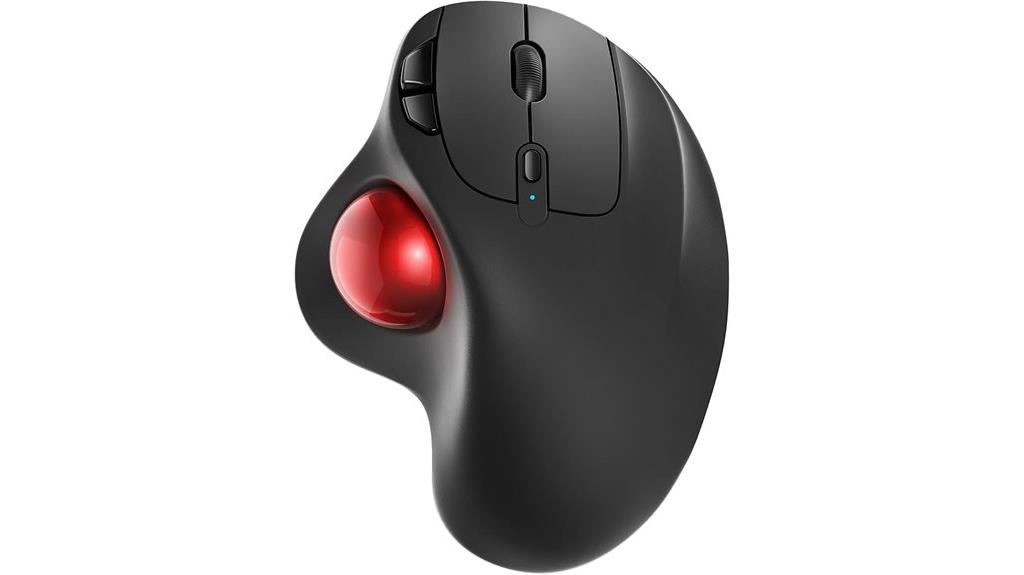
For anyone seeking precise control during editing or graphic work, the Nulea M501 Wireless Trackball Mouse stands out with its smooth thumb-controlled trackball that works seamlessly on various surfaces. Its ergonomic, curved design reduces muscle stress and keeps your palm in a natural position for all-day comfort. With adjustable DPI, you get accurate cursor movement, while the trackball allows control on desktops, couches, or beds. Connecting up to three devices via Bluetooth or the USB receiver makes switching effortless. The rechargeable battery guarantees long-lasting use, and the six buttons, including back and forward, boost productivity, making it a versatile choice for demanding tasks.
Best For: professionals and enthusiasts who require precise, ergonomic control for editing, graphic design, or extended computer use across multiple devices.
Pros:
- Ergonomic shape reduces muscle stress and enhances comfort during prolonged use.
- Adjustable DPI and smooth trackball provide precise cursor control on various surfaces.
- Supports connection to up to 3 devices with easy switching, increasing versatility.
Cons:
- Buttons are not programmable, limiting customization options.
- Requires careful charging and avoidance of fast chargers to preserve battery health.
- The design may take some time to get used to for new users unfamiliar with trackball mice.
Kensington Expert Wireless Trackball Mouse (K72359WW) Black, 3.5 x 6.1 x 8

The Kensington Expert Wireless Trackball Mouse (K72359WW) stands out as an excellent choice for professionals who need precise cursor control during detailed editing tasks. Its large 55mm ball and Diamond Eye optical tracking deliver exceptional accuracy, while the patented scroll ring makes vertical navigation effortless. The ergonomic wrist rest supports comfort during long sessions, and its ambidextrous design suits both left- and right-handed users. With customizable buttons and adjustable scroll and cursor speeds via KensingtonKonnect software, you gain tailored control. Wireless options include Bluetooth LE and a 2.4GHz USB dongle, offering versatility. Plus, its power-saving features and 3-year warranty make it a reliable, user-friendly tool for demanding editing work.
Best For: professionals and creative users who require precise cursor control and ergonomic comfort for detailed editing tasks.
Pros:
- Large 55mm ball and Diamond Eye optical tracking for high accuracy
- Ergonomic wrist rest and ambidextrous design for enhanced comfort and usability
- Customizable buttons and adjustable speeds via KensingtonKonnect software for tailored control
Cons:
- May be bulky for users with limited desk space or preference for smaller mice
- Bluetooth connection can be less stable on some devices compared to USB dongle
- Requires software installation for customization, which might not be convenient for all users
Logitech MX Ergo S Wireless Trackball Mouse
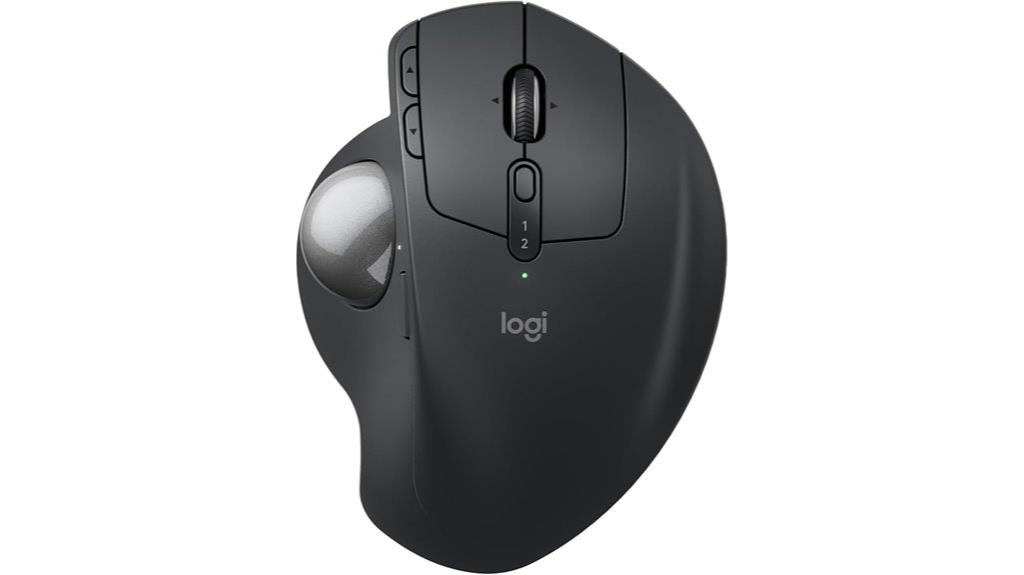
Designed for professionals who demand precision and comfort during extended editing sessions, the Logitech MX Ergo S Wireless Trackball Mouse stands out with its ergonomic, sculpted shape and customizable controls. Its 20-degree tilt improves forearm posture and reduces muscle strain by 27%, while soft rubber grips and a large trackball ensure smooth, precise control without moving your arm. With six programmable buttons, a DPI switch, and Smart Actions, it boosts productivity. The mouse connects via Bluetooth or Logi Bolt USB receiver, supports multiple devices, and charges quickly with USB-C, offering up to 120 days of use. Overall, it’s a comfortable, reliable choice for long, detailed editing tasks.
Best For: professionals and long-term users seeking an ergonomic, precise, and customizable wireless trackball mouse for extended editing or detailed tasks.
Pros:
- Ergonomic design with a 20-degree tilt reduces muscle strain and improves comfort during long use
- Customizable controls including 6 programmable buttons, DPI switch, and Smart Actions for enhanced productivity
- Long battery life of up to 120 days with quick USB-C charging, making it reliable for extended use
Cons:
- Some users report discomfort with rounded scroll wheels, especially those with finger pain
- Compatibility issues with certain Logitech Unifying USB receivers may arise
- Larger size and shape may not be suitable for users with smaller hands or those preferring traditional mice
Wired Trackball Mouse, Ergonomic Design for PC, Laptop, Windows & Mac
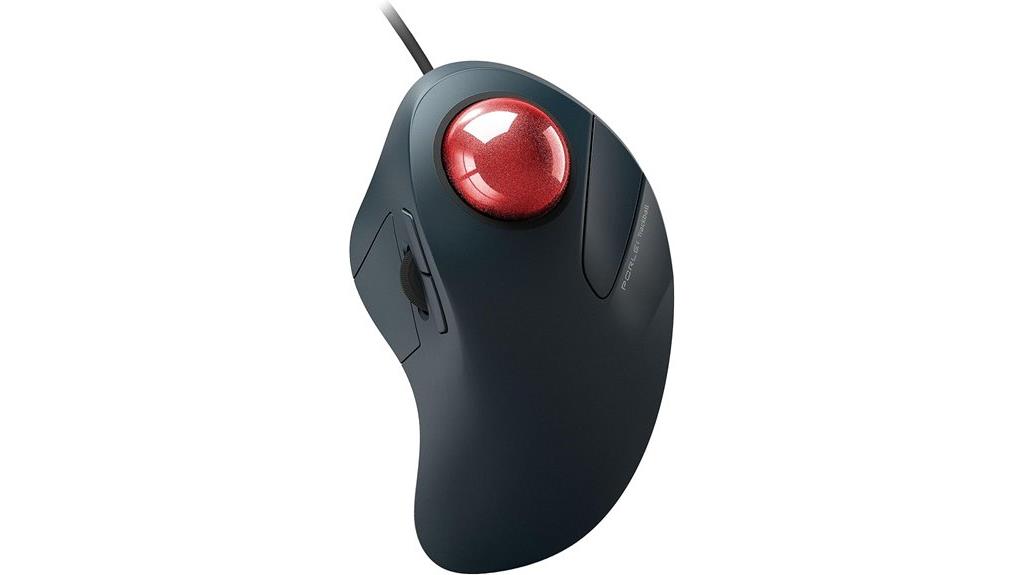
If you’re seeking a reliable, ergonomic trackball mouse that offers precise control without cluttering your workspace, this wired option is an excellent choice. Its snug ergonomic design reduces muscle strain and wrist pain, making long sessions comfortable. The 44mm index finger trackball improves cursor accuracy while minimizing arm movement. With a high-performance optical sensor and super sensitive 3-point positioning, it delivers spot-on tracking for precise tasks. Adjustable DPI settings let you customize cursor speed easily. Plug-and-play via USB A cable ensures quick setup on Windows and Mac, fitting seamlessly into tight workspaces and versatile environments.
Best For: users seeking an ergonomic, precise, and clutter-free trackball mouse suitable for long work or play sessions on PC or Mac.
Pros:
- Ergonomic design reduces muscle strain and wrist pain for comfortable extended use
- High-precision optical sensor with adjustable DPI for customizable cursor control
- Plug-and-play setup with USB A cable, compatible with various surfaces and environments
Cons:
- May require some adjustment for users accustomed to traditional mice
- Limited to five DPI settings, which might not suit all precision needs
- Wired connection could restrict movement compared to wireless alternatives
Kensington Expert Wireless Trackball Mouse (K72359WW) Black, 3.5 x 6.1 x 8
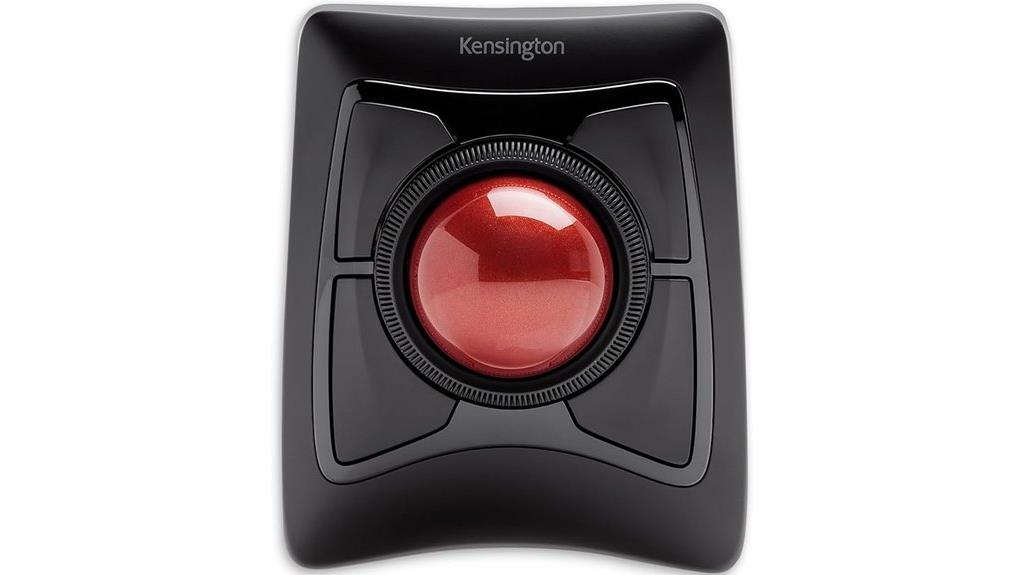
For professionals who need precise cursor control and ergonomic comfort, the Kensington Expert Wireless Trackball Mouse (K72359WW) stands out. Its large 55mm ball and Diamond Eye optical tracking deliver exceptional accuracy for detailed editing tasks. The patented scroll ring makes steering long documents effortless. Designed with an ergonomic wrist rest, it reduces strain during extended use and suits both left- and right-handed users thanks to its ambidextrous shape. With customizable buttons and adjustable scroll and cursor speeds via KensingtonKonnect software, it offers tailored performance. Wireless connectivity via Bluetooth or USB dongle provides flexibility, while power-saving features ensure long battery life. This durable, versatile mouse is ideal for demanding editing workflows.
Best For: professionals seeking precise, ergonomic, and customizable control for detailed editing, design, or long hours of computer use.
Pros:
- Large 55mm ball and Diamond Eye optical tracking for high accuracy
- Ambidextrous design suitable for both left- and right-handed users
- Customizable buttons and adjustable speeds for personalized performance
Cons:
- Size may be less portable for travel or small workspace setups
- Requires software installation for full customization, which may be an extra step
- USB dongle recommended for Windows 7+, potentially limiting wireless flexibility on some systems
Nulea M501 Wireless Trackball Mouse
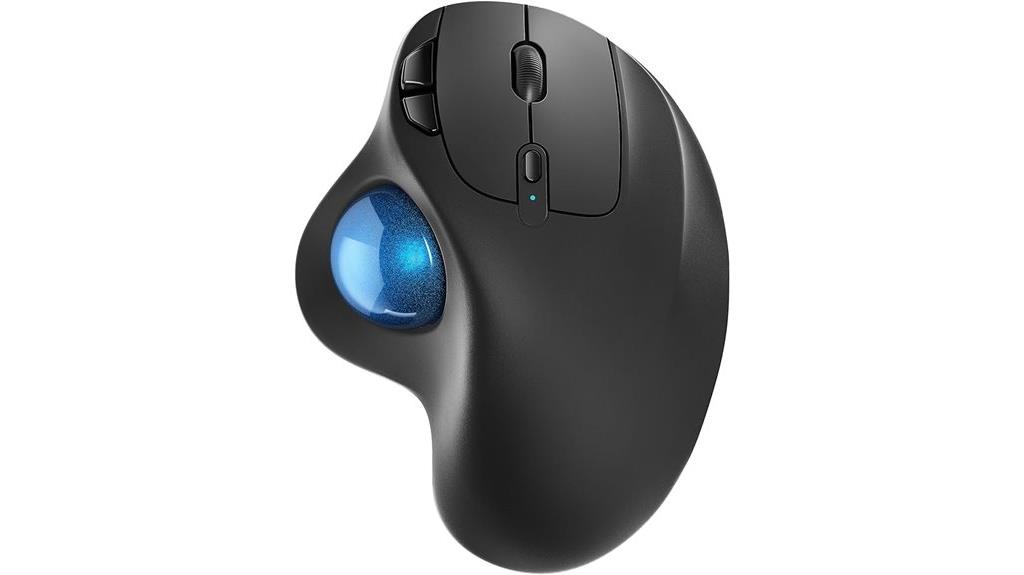
The Nulea M501 Wireless Trackball Mouse stands out as an excellent choice for creative professionals who need precise control during detailed editing tasks. Its ergonomic design with a smooth matte finish guarantees all-day comfort, reducing wrist strain. The compact size and lightweight build make it highly portable, ideal for working on the go. With six customizable buttons, adjustable DPI, and multi-device connectivity via Bluetooth or USB, it offers versatile performance. The rechargeable battery lasts weeks on a single charge, and the device is easy to clean. Overall, it combines reliability, comfort, and precision, making it a smart investment for demanding editing work.
Best For: creative professionals and ergonomic enthusiasts seeking precise control, comfort, and multi-device connectivity for detailed editing tasks.
Pros:
- Ergonomic design with a comfortable matte finish reduces wrist strain during long use
- Adjustable DPI and multiple customizable buttons enhance precision and workflow efficiency
- Long-lasting rechargeable battery and easy cleaning make it highly convenient and durable
Cons:
- Occasional minor connectivity issues reported by some users
- Squeaking scroll wheel may be distracting for sensitive users
- No power indicator when connected via USB receiver, requiring monitoring through device settings
ProtoArc Wireless Trackball Mouse, EM01 NL Bluetooth Rollerball Thumb Mouse
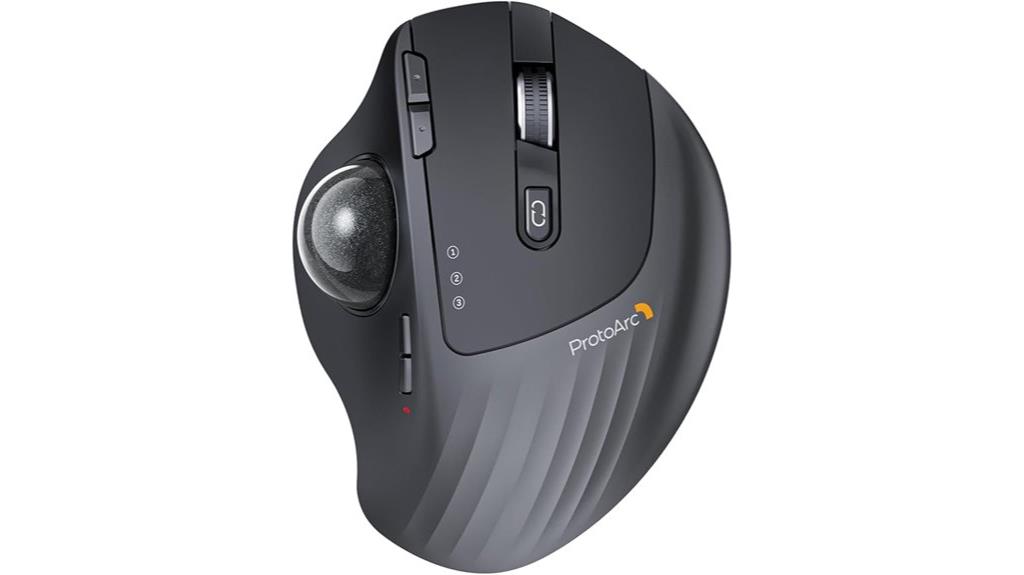
Designed with ergonomic comfort and versatility in mind, the ProtoArc Wireless Trackball Mouse, EM01 NL, is ideal for users who require precise control during extended editing sessions. Its adjustable tilt from 0 to 20 degrees helps reduce wrist and arm strain, making it suitable for long hours. The compact, thoughtfully shaped trackball fits smaller hands comfortably, while side buttons and thumb control enhance usability. With triple connectivity options—Bluetooth, 2.4 GHz wireless, and USB-C charging—it seamlessly switches between devices. The DPI adjustment offers smooth cursor control, and the long-lasting rechargeable battery minimizes downtime. Overall, this mouse combines comfort, flexibility, and responsiveness for demanding editing work.
Best For: users seeking an ergonomic, adjustable, and versatile wireless trackball mouse for prolonged editing, work, or casual use with reduced wrist strain.
Pros:
- Ergonomic design with adjustable tilt (0-20 degrees) for personalized comfort and reduced strain.
- Multiple connectivity options (Bluetooth, 2.4 GHz, USB-C) for seamless multi-device control.
- Long-lasting rechargeable battery requiring minimal charging over extended periods.
Cons:
- Non-programmable buttons and limited customization options for advanced users.
- Scroll wheel may not be as quiet as desired, potentially causing distractions.
- The tilt hinge could be fragile if mishandled, requiring careful handling and maintenance.
Kensington Orbit Wireless Trackball Mouse with Touch Scroll Ring

If you’re looking for a versatile and ergonomic trackball mouse that enhances precision without sacrificing comfort, the Kensington Orbit Wireless Trackball Mouse with Touch Scroll Ring is an excellent choice. Its compact, symmetrical design fits both hands, reducing wrist strain and improving comfort during long work sessions. The 32mm trackball offers precise cursor control, while the touch scroll ring makes steering web pages and documents effortless. Wireless connectivity via a Nano receiver provides freedom of movement across various surfaces, and customizable buttons add to its flexibility. With a battery life of up to 30 months, it’s a reliable, user-friendly device ideal for professionals seeking efficiency and ergonomics.
Best For: professionals seeking an ergonomic, precise, and versatile wireless trackball mouse suitable for long work sessions across various surfaces.
Pros:
- Ergonomic design reduces wrist and hand strain, enhancing comfort during extended use
- Touch scroll ring allows effortless navigation through web pages and documents
- Wireless connectivity with long battery life of up to 30 months offers convenience and freedom of movement
Cons:
- Initial adjustment period may take several weeks to get accustomed to the trackball control
- Smaller trackball size might require some users to adapt for precise cursor movements
- Custom software setup is necessary for advanced features and button customization
Factors to Consider When Choosing Trackball Mice for Precision Editing
When selecting a trackball mouse for precision editing, I focus on accuracy and sensor quality to guarantee smooth, precise movements. I also consider the size of the trackball and customizable DPI settings to match my workflow needs. Additionally, ergonomic design and device compatibility play vital roles in making a comfortable and versatile choice.
Accuracy and Sensor Quality
The accuracy of a trackball mouse hinges on the quality and resolution of its sensor, with higher DPI settings allowing for finer, more precise cursor control. Advanced sensors with 3-point or 4-point tracking can detect micro-movements, which is vital for detailed editing tasks like graphic design or CAD work. Sensor precision impacts the consistency of cursor movement, reducing jitter and lag during high-precision operations. The effectiveness of the sensor can also depend on surface compatibility; high-quality sensors perform reliably across various surfaces without needing a mouse pad. Additionally, calibration and adjustable DPI features let users customize sensitivity, optimizing accuracy for specific needs. Overall, choosing a trackball with a high-quality sensor ensures smooth, precise control, making your editing work more efficient and accurate.
Trackball Size and Precision
Choosing the right trackball size is essential to achieving precision in detailed editing tasks. Larger trackballs, around 55mm in diameter, provide more accurate control because they allow finer cursor movements with less effort. Smaller ones might be less precise but can be more comfortable for limited desk space or portability. Additionally, high DPI settings—like 1600 or adjustable levels—enable you to fine-tune cursor sensitivity, vital for precision work. Customizable software lets you tweak sensitivity and responsiveness to suit your workflow, boosting accuracy. The surface design, whether smooth or textured, also influences tracking accuracy and control. Finally, a high-quality sensor ensures smooth, consistent cursor movements, making it easier to handle intricate editing tasks with confidence.
Customizable DPI Settings
Adjustable DPI settings are essential for achieving the level of precision needed in detailed editing tasks. They let me fine-tune cursor sensitivity, which is fundamental when working on pixel-perfect projects. Higher DPI levels, like 1200 or above, enable me to make small, precise movements, perfect for detailed design work. Lower DPI settings slow down the cursor, giving me better control for intricate selections and adjustments. Many trackball mice offer multiple DPI presets I can switch quickly with dedicated buttons, streamlining my workflow. This adaptability is especially helpful when switching between screens with different resolutions or when switching tasks. Ultimately, customizable DPI settings enhance my accuracy and efficiency, making them a critical feature for anyone serious about precision editing.
Ergonomic Design Features
An ergonomic design is vital for comfortable, precise editing sessions, as it helps reduce hand fatigue and strain over long periods. A shape that conforms to the natural curvature of your hand minimizes discomfort and improves control. Look for a trackball with a large, smooth ball—55mm or more—for precise movements with minimal hand motion. Adjustable DPI settings are also essential, allowing you to tailor cursor sensitivity for detailed tasks. Features like a supportive wrist rest and a tilt angle promote a relaxed wrist position, preventing fatigue. Additionally, symmetrical or ambidextrous designs and well-placed controls help avoid repetitive strain injuries, making long editing sessions more comfortable and sustainable. Prioritizing these ergonomic features ensures better comfort and precision during extended use.
Compatibility With Devices
To guarantee your trackball mouse works seamlessly with your editing setup, you need to verify its compatibility with your devices. First, ensure it supports your operating system, whether Windows, macOS, Linux, or Android. Check if it offers multiple connection options like Bluetooth, USB receiver, or wired, so it matches your device’s ports and preferences. It’s also important to confirm that the mouse’s drivers or firmware are compatible with your hardware and OS version for full functionality. Additionally, verify that your device’s hardware specifications, such as USB port type and Bluetooth version, align with the mouse’s requirements. If you work across multiple devices, consider whether the trackball can switch easily between them to streamline your workflow.
Ease of Cleaning and Maintenance
Choosing a trackball mouse that’s easy to clean can considerably improve your editing workflow by reducing downtime caused by dirt and debris. I look for models with removable or easily accessible balls, which make thorough cleaning simple and quick. Surfaces that are smooth, frosted, or plastic tend to attract less dust and are easier to wipe down. Devices with dedicated cleaning tools or accessible rollers help remove lint, hair, or dust lodged in the trackball socket. I also prefer mice with minimal crevices or complex mechanisms, as these trap dirt and complicate maintenance. Regular cleaning, combined with user-friendly features like quick-release balls, ensures my trackball stays responsive and extends its lifespan. Good maintenance is key to consistent precision and smooth operation.
Software Customization Options
When selecting a trackball mouse for precision editing, software customization options play a pivotal role in optimizing your workflow. Being able to remap buttons, assign macros, and adjust cursor behavior allows me to tailor the device to my specific editing needs. Advanced features like customizable DPI settings, scroll speed controls, and axis locking help me achieve pinpoint accuracy. Compatibility with third-party or proprietary software is essential for seamless integration with my editing tools, ensuring I can maximize the mouse’s capabilities. A user-friendly interface and regular updates make customization straightforward and keep the device adaptable as my skills evolve. Ultimately, having robust customization options boosts efficiency, minimizes repetitive motions, and enhances precision during detailed editing tasks.
Connectivity and Power Sources
Since connectivity options directly impact how smoothly I can incorporate a trackball mouse into my editing setup, I always prioritize models that support both Bluetooth and USB dongles. This versatility lets me switch seamlessly between devices and reduces cable clutter. I also look for rechargeable batteries with fast-charging features, so I don’t have to worry about interruptions during long editing sessions. Compatibility with my operating system—Windows, Mac, or Linux—is essential for smooth integration. I prefer mice that allow easy switching between multiple connected devices, boosting workflow efficiency. Additionally, power-saving features like auto-sleep modes or adjustable settings help extend battery life during intensive work. These factors guarantee my trackball mouse remains reliable, responsive, and ready whenever I need precision control.
Frequently Asked Questions
How Do Trackball Mice Improve Accuracy Over Traditional Mice?
Trackball mice improve accuracy because I don’t have to move the whole device to navigate. Instead, I control the cursor by rotating the ball with my thumb or fingers, offering more precise movements. This reduces hand fatigue and jitter, making detailed editing smoother. I find that the stability and fine control they provide help me work more efficiently on intricate tasks, especially in design and editing work.
Are Wireless Trackball Mice Suitable for Professional Editing Tasks?
Yes, wireless trackball mice are totally suitable for professional editing tasks. I love how they give me the freedom to move around without cables getting in the way. Modern wireless models offer low latency and high precision, which are essential for detailed editing work. Plus, their ergonomic design reduces strain during long sessions. If you prioritize flexibility and accuracy, a wireless trackball mouse can be a game-changer for your workflow.
What Maintenance Is Required for Optimal Trackball Performance?
Think of your trackball like a fine-tuned instrument—regular maintenance keeps it humming smoothly. I clean the ball and sensors weekly with a soft cloth and compressed air to remove dust and debris. Checking and tightening screws occasionally prevents loose parts. Updating your drivers ensures peak performance. Proper maintenance isn’t just routine; it’s the secret sauce for precise, effortless editing, keeping your workflow seamless and your accuracy razor-sharp.
Can Trackball Mice Reduce Wrist Strain During Long Editing Sessions?
Absolutely, trackball mice can considerably reduce wrist strain during long editing sessions. I’ve found that because you don’t need to move your arm and wrist as much, it lessens fatigue and discomfort. Plus, their ergonomic design keeps your hand in a natural position, which helps prevent repetitive strain injuries. If you’re looking for a way to make extended editing more comfortable, a good trackball mouse is definitely worth trying.
Which Trackball Mouse Features Are Essential for High-Precision Editing?
Did you know that 85% of professional editors prefer trackball mice for precision work? I believe vital features include a high DPI range for accuracy, customizable buttons for quick shortcuts, and a comfortable, ergonomic design that reduces fatigue. A smooth, responsive ball is also essential for fine control. These features help me work swiftly and accurately, making my editing process more efficient and less tiring.
Conclusion
Choosing the right trackball mouse can feel like finding a needle in a haystack, but once you do, your precision editing game skyrockets. These top picks are designed to blend comfort with accuracy, making every click feel like second nature. So, trust your instincts, pick the one that fits your workflow, and let your creativity flow without the fatigue. After all, the right tool isn’t just an accessory—it’s your secret weapon.

Bryn – AI Expert Writer Bryn is the wizard of words and AI at Influenctor. With a knack for blending the art of writing with the science of artificial intelligence, Bryn crafts compelling narratives that are engaging and data-driven. Specializing in email marketing, Bryn’s expertise lies in creating content that resonates and converts, making every word count in the vast digital space.