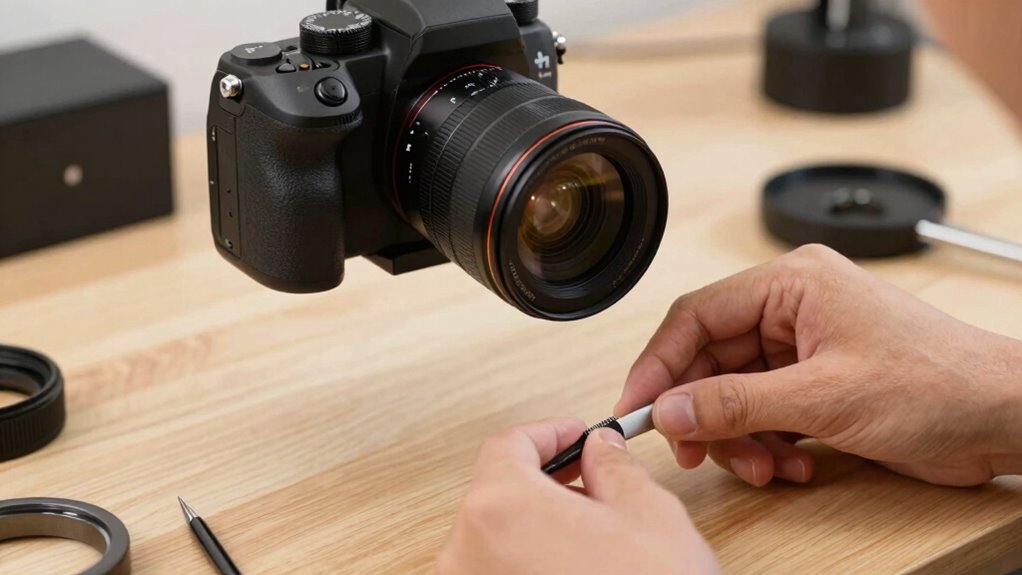

A desk camera enhances your hands-on demos by providing a clear, close-up view of your workspace and actions. It captures intricate details with precision, making it easier for your audience to follow complex tasks. Proper positioning, lighting, and a clutter-free environment all improve visual clarity and focus. This setup creates a seamless, professional experience that highlights important steps and minimizes distractions. Keep exploring to discover how you can optimize your demo setup even further.

Get business pricing on office and shipping supplies
- Business-only prices and quantity discounts
- Tax-exempt purchasing
- Multiple users, one account, clear invoices
Key Takeaways
- Provides a close-up, detailed view of workspace and precise actions during demonstrations.
- Ensures stable, well-aligned positioning to highlight critical parts without distortion.
- Uses optimal lighting techniques for clear, shadow-free visuals of intricate tasks.
- Maintains an organized, clutter-free environment to keep focus on hands and materials.
- Enhances viewer engagement and understanding through sharp, well-focused visuals.
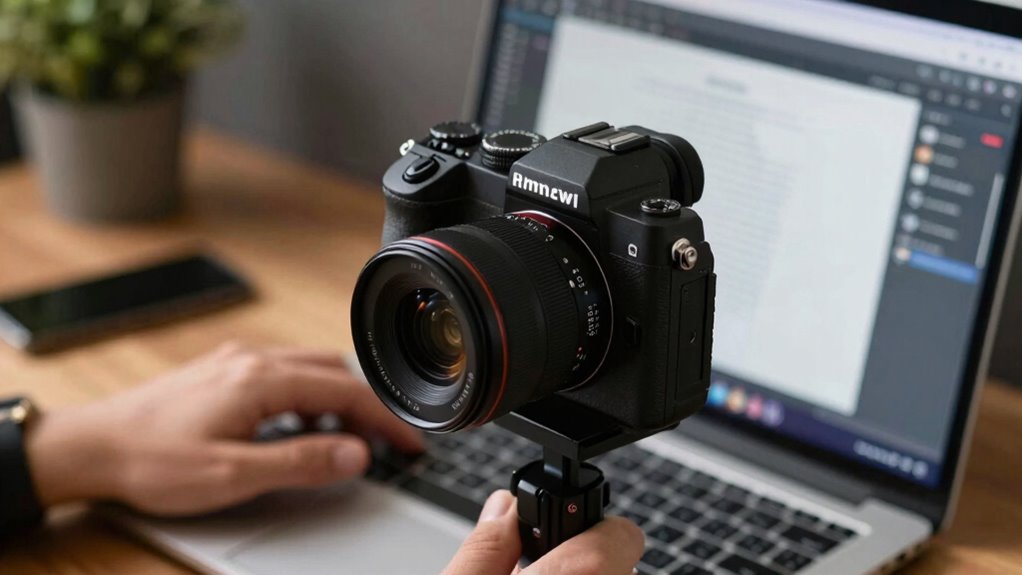
A desk camera can substantially enhance your demos and walkthroughs by providing a clear, close-up view of your workspace and actions. When you’re demonstrating intricate tasks or fine details, this camera captures every movement with precision, making it easier for your audience to follow along. To maximize its effectiveness, proper camera positioning is vital. You want the camera to be stable and aligned directly above or at an angle that clearly showcases your hands and workspace. Adjust the height and angle until you get a balanced view that highlights the essential parts of your demonstration without distortion or distraction. Good camera positioning ensures your viewers focus on what matters most, avoiding unnecessary background clutter or awkward angles that could detract from your message.
Lighting techniques also play an essential role in elevating your demos. Well-placed lighting eliminates shadows and enhances clarity, so your audience can see every detail clearly. Use soft, diffuse light sources positioned to evenly illuminate your workspace from multiple angles. Avoid harsh, direct lighting that causes glare or strong shadows, as these can obscure important elements. If possible, incorporate adjustable lighting options so you can fine-tune brightness and direction in real-time. Proper lighting makes your camera feed sharper and more professional-looking, which boosts viewer engagement and comprehension. When combined with ideal camera positioning, effective lighting creates a seamless viewing experience that feels natural and easy to follow. Additionally, understanding digital content formats can help you choose the best visual setup for your demos.
Think about your workspace setup as well. A clutter-free environment not only looks more professional but also allows you to position your camera for the best view. Keep essential tools and materials within easy reach, and ensure your background is tidy. This setup, paired with strategic camera positioning, helps focus attention on your hands and the task at hand, rather than on distracting elements. When your lighting and camera angles are well optimized, your demos become more compelling, and your instructions clearer.
In short, a desk camera excels in hands-on demos because it captures minute details that might be missed on a broader shot. By paying attention to camera positioning, you control exactly what your viewers see, while thoughtful lighting techniques ensure your visuals are bright and sharp. Together, these elements make your demonstrations more engaging, professional, and easy to follow. This combination helps you communicate complex ideas more effectively, making your audience feel like they’re right there with you, watching every step unfold in real time.
As an affiliate, we earn on qualifying purchases.
Frequently Asked Questions
How Do Desk Cameras Compare to Traditional Webcams for Detail Clarity?
Desk cameras generally offer better detail clarity than traditional webcams because they often feature manual focus options, allowing you to fine-tune sharpness for close-up work. This ability enhances depth perception, making small details more visible during demos. Unlike standard webcams, desk cameras provide clearer images, helping you showcase intricate textures or fine points more effectively. This makes them ideal for detailed demonstrations and hands-on walkthroughs where clarity matters most.
What Are the Best Lighting Conditions for Desk Camera Demos?
Think of your demo space as a painting studio—good lighting brings every color to life. You want bright, soft ambient lighting to avoid harsh shadows and guarantee your desk camera captures true color accuracy. Natural light is ideal, but if unavailable, use diffused LED lights. Keep lights evenly distributed around your workspace to highlight details clearly, making your demo vibrant and professional, just like a masterpiece.
Can Desk Cameras Record High-Resolution Videos Without Lag?
Yes, desk cameras can record high-resolution videos without lag, especially when they feature advanced video stabilization and autofocus accuracy. These technologies guarantee smooth, clear footage even during movement or quick focus shifts, minimizing lag and blurriness. By choosing a desk camera with these features, you’ll get crisp, professional-quality recordings that capture your demos in real time, making your walkthroughs more engaging and seamless for viewers.
Are Desk Cameras Compatible With All Video Conferencing Software?
Desk cameras are generally compatible with most video conferencing software, but you should check the software’s compatibility list first. They usually support common platforms like Zoom, Microsoft Teams, and Google Meet. For seamless device integration, verify your desk camera connects via USB or other supported ports. Updating your software and drivers can also prevent issues. Overall, most desk cameras work well across major conferencing tools, making setup straightforward.
What Is the Typical Setup Time for a Desk Camera?
The setup duration for a desk camera usually takes about 10 to 15 minutes. You’ll need time for equipment preparation, which includes unboxing, connecting the camera to your computer, and adjusting the mounting or positioning. Ensuring your software recognizes the device might add a few extra minutes. Once you’ve completed these steps, your desk camera is ready to deliver clear, close-up visuals during your demos or walkthroughs.
Conclusion
A desk camera turns your demos into a mesmerizing dance of clarity and detail, illuminating every corner of your work like a guiding lighthouse. It’s your trusted partner, transforming the mundane into a captivating showcase that keeps your audience hooked. With each crisp image and steady shot, you weave a story of precision and professionalism. Embrace this tool, and watch your hands-on demos become a radiant symphony that leaves your viewers inspired and enthusiastic for more.
Evergreen bestsellers Picks
bestsellers
As an affiliate, we earn on qualifying purchases.