To guarantee your email templates are accessible, focus on using clear, simple layouts with enough spacing and headings. Add descriptive alt texts for all images, making sure visuals are understandable if blocked or read aloud. Maintain high color contrast for readability and avoid relying solely on color to convey information. Regularly test your designs with accessibility tools and feedback, so you can create emails that communicate effectively to everyone. Keep exploring for more tips to improve your email accessibility.
Key Takeaways
- Use descriptive alt text for all images to ensure content is accessible when images are blocked or for screen readers.
- Maintain sufficient color contrast (minimum 4.5:1 ratio) between text and background for readability.
- Structure emails with clear headings, subheadings, and organized layouts to aid navigation and comprehension.
- Avoid relying solely on color to convey information; include textual cues and icons for clarity.
- Regularly test email templates with accessibility tools and gather user feedback for continuous improvements.
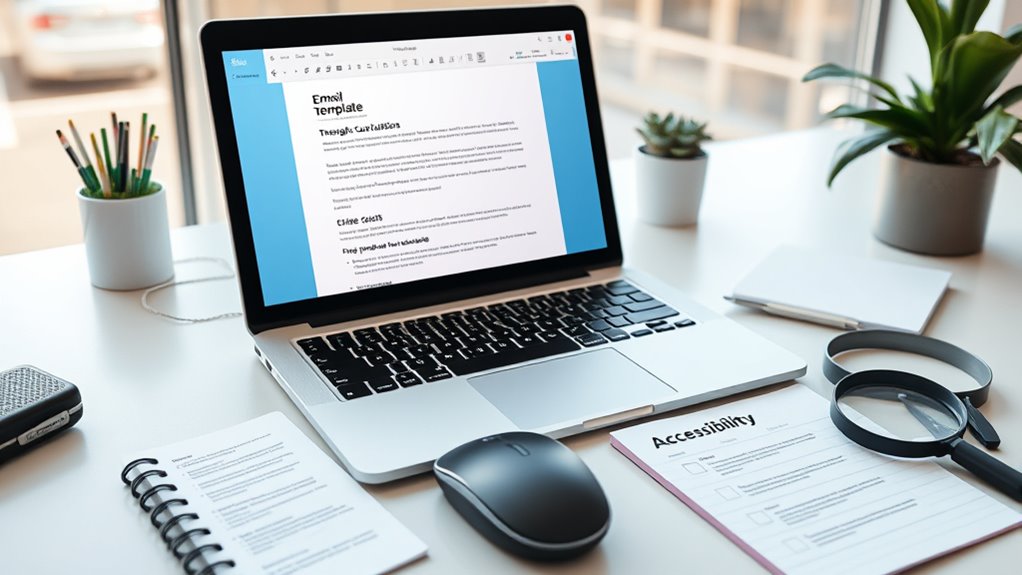
Ensuring your email templates are accessible is essential for reaching every audience effectively. When designing your emails, paying attention to visual elements like alt text and color contrast makes a significant difference for users with visual impairments or those experiencing technical challenges. Alt text, or alternative text, provides descriptive information about images embedded in your email. If a recipient’s email client blocks images or they’re using a screen reader, alt text guarantees they understand the content you intended to convey visually. Instead of leaving images blank or with vague descriptions, craft clear, concise alt text that explains the purpose of each image. For example, rather than “logo,” specify “Company Logo” or describe the image’s function, like “Click here to learn more.” This approach guarantees that your message remains intact, regardless of how your recipient accesses it. Additionally, understanding the importance of family photoshoot fails can remind designers to incorporate humor and candid moments into visual content, making emails more relatable and engaging.
Color contrast is equally crucial for accessibility. Many users struggle to distinguish text from background colors if the contrast is insufficient. To address this, choose color combinations that meet accessibility standards—typically, a contrast ratio of at least 4.5:1 for body text. High contrast makes your content easier to read for people with low vision or color vision deficiencies. Avoid relying solely on color to communicate critical information; for example, don’t use red text to indicate errors without also including a textual cue. Instead, combine a strong color contrast with clear, descriptive text or icons. Consistent, deliberate use of contrasting colors enhances readability and helps all users navigate your content effectively.
Additionally, consider how your overall design impacts accessibility. Keep layouts simple and organized, with ample spacing to prevent clutter. Use headings and subheadings to structure your content clearly, aiding screen readers in parsing information efficiently. When planning your color schemes, test your email templates using tools that simulate various visual impairments to guarantee your designs remain accessible. Remember, accessibility isn’t a one-time consideration; it’s an ongoing process of refinement. Regularly review and update your templates to adhere to best practices, and always seek feedback from diverse users to identify areas for improvement.
Top picks for "accessibility consideration email"
Open Amazon search results for this keyword.
As an affiliate, we earn on qualifying purchases.
Frequently Asked Questions
How Can I Test Email Accessibility Across Different Devices?
You should test email accessibility across different devices by using responsive design on various screens and email clients. Preview your emails on smartphones, tablets, and desktops to identify how they display. Incorporate alt text best practices for images, ensuring descriptions are clear and concise. Use tools like Litmus or Email on Acid to simulate different environments, helping you verify that your email remains accessible and visually appealing for all users.
What Are Common Accessibility Mistakes in Email Templates?
Like a locked door without a key, missing alt text and poor keyboard navigation block access. You often make mistakes by neglecting descriptive alt text for images, leaving visually impaired users lost. Skipping logical focus order hampers keyboard navigation, frustrating users who rely on keyboard controls. Make sure all images have meaningful alt text and your email is fully navigable via keyboard. These steps open the door to a truly accessible experience for everyone.
How Do Color Choices Affect Email Accessibility?
Your color choices directly impact email accessibility by affecting color contrast and symbolism. You should guarantee sufficient contrast between text and background to make content readable for everyone, including those with visual impairments. Be mindful of color symbolism, which can carry different meanings across cultures; avoid relying solely on color to convey important information. Using high-contrast, thoughtfully chosen colors enhances clarity and ensures your message reaches all recipients effectively.
Are There Tools to Automatically Check Email Accessibility?
Yes, there are tools that act like your email’s personal watchdogs, ensuring accessibility is up to snuff. Automated accessibility tools can scan your emails and flag issues, making email accessibility audits a breeze. These tools help you catch problems early, so your messages are inclusive for everyone. Using them saves time and enhances your email’s reach, ensuring your content shines brightly for all recipients, no matter their abilities.
How Can I Improve Email Accessibility for Screen Reader Users?
To improve email accessibility for screen reader users, you should add descriptive alt text to all images, ensuring they convey the same message as visuals. Use semantic markup by organizing content with appropriate headings, lists, and buttons, which helps screen readers interpret your email correctly. Keep your language clear and concise, avoid unnecessary clutter, and test your emails with screen readers to identify and fix potential issues.
Conclusion
By prioritizing accessibility in your email templates, you’re building bridges rather than barriers, ensuring everyone can connect effortlessly. When you design with inclusivity in mind, you create a welcoming space that resonates like a well-tuned symphony, where every note matters. Remember, accessibility isn’t just a feature—it’s the foundation of genuine communication. So, keep testing, refining, and listening, because your emails should be open doors, not locked chambers, to all your recipients.