The saying ‘change is the only constant’ holds true, especially in the realm of business communications. **Adapting email templates in QuickBooks Desktop** plays a vital role in this continuous evolution. Dive in to discover how these modifications can boost your communication game and set you apart from the competition. Let’s unravel the secrets behind seamless email template customization in QuickBooks Desktop!
The ability to personalize and tailor email templates can significantly enhance the professional image of your business and streamline communication with clients.
However, the process of modifying email templates in QuickBooks Desktop can be intricate, requiring attention to detail and a clear understanding of the software’s functionalities.
There are specific steps and best practices to consider, which we will explore to ensure that your email communications are both efficient and impactful.
Key Takeaways
- QuickBooks allows users to customize email templates to enhance the professional image of their business.
- The Layout Designer feature in QuickBooks enables modification of the appearance and content of email templates.
- Dynamic data fields can be added to email templates to include real data from the form.
- Users can create multiple email templates for different transaction types and easily edit them as needed.

UBeesize 10" Key Light for Streaming, Desk Ring Light with Adjustable Arm, Zoom Lighting for Home Office, Gaming, Podcast, Video Calls, and Recording
【Side-Lighting Technology】The UBeesize video conference light features advanced side-lighting technology that produces soft, bright illumination, perfectly enhancing facial...
As an affiliate, we earn on qualifying purchases.
Understanding Email Templates in QuickBooks
We can easily understand the email templates in QuickBooks by exploring their customization options and dynamic data fields.
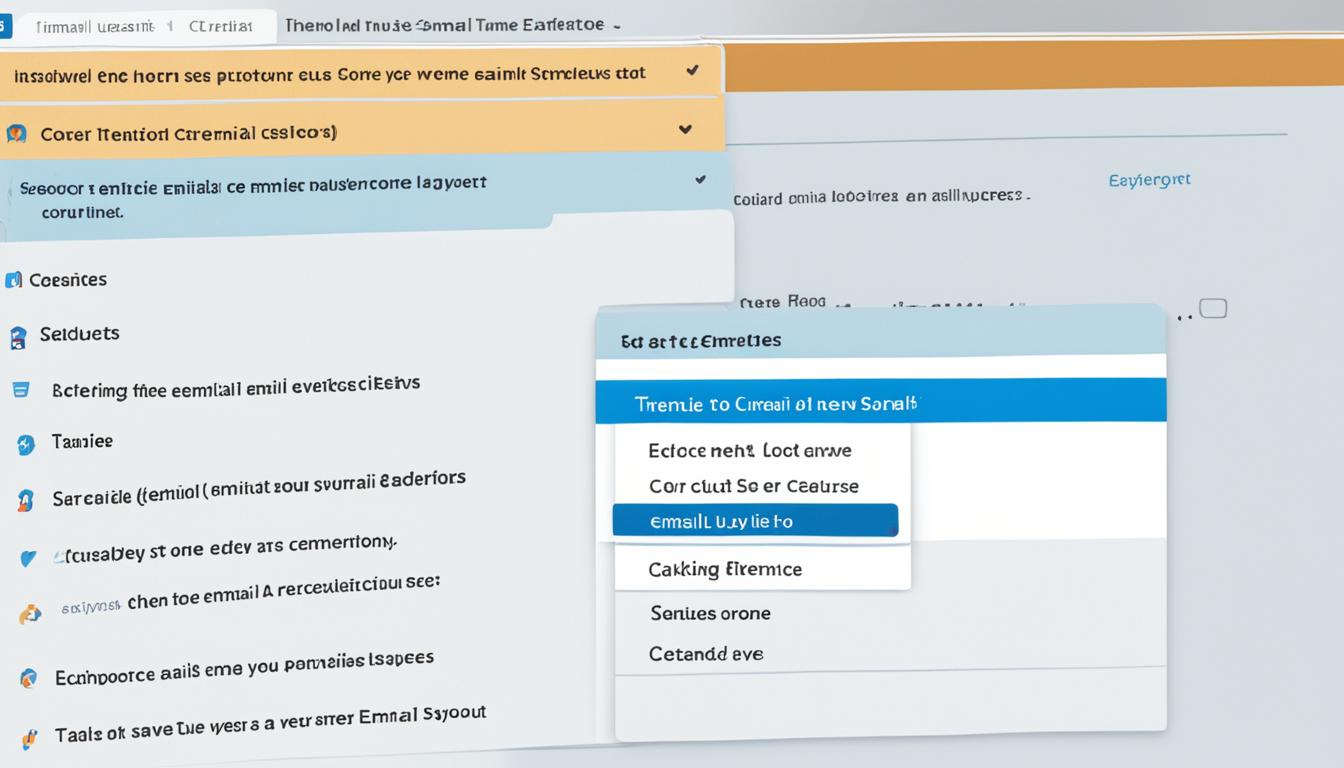
To begin, navigate to the Edit menu and select Preferences, then go to the Send forms menu and Company Preferences tab to access the templates.
Within the preferences, select Edit Email Template to create, change, or customize email templates. Utilize the Layout Designer feature to modify the appearance and content of the template.
To add dynamic data fields, simply select Insert Field to include real data from the form, such as customer name or due date, making the templates personalized and dynamic.
After customizing the template, remember to save it and set it as the default by selecting Save and then choosing the default template in the Company Preferences tab of the Send forms menu.
This allows for efficient use of the customized templates for various purposes, such as single transactions, batch emails, or sending pay stubs in QuickBooks Desktop.
Understanding these customization options and dynamic data fields empowers us to effectively utilize and tailor email templates to our specific business needs.

Skytex Softbox Lighting Kit(2Pack), 20x28in Soft Box | 85W 2700-6400K E27 LED Bulb Continuous Photography Lighting, Photo Studio Lights Equipment for Camera Shooting, Video Recording
The kit included: 2pcs 20" x 28"/50cm x 70cm Softbox +2pcs 85W 2700-6400K 100V-240V LED Light Bulb +...
As an affiliate, we earn on qualifying purchases.
Creating Custom Email Templates

To create and customize a template in QuickBooks Desktop, begin by signing in as an admin or a user with permission to edit company preferences. From the Edit menu, select Preferences, then choose the Send Forms option and click the Company Preferences tab.
Here, select the Email option and customize the email templates in QuickBooks according to your needs. To create multiple templates and use them for different transaction types, go to the Templates tab and click on the drop-down menu to choose the type of form you want to customize.
For instance, if you want to create an Invoice template, select Invoice in the transaction type drop-down menu. Then, click the Add button to create a new template or make changes to an existing one.
You can modify the subject line, body, and add dynamic data fields using the Insert Field option. After customizing the template, save the changes and set it as the default for a specific transaction type.
This way, when you create an invoice, for example, QuickBooks Desktop will automatically use the default template you’ve set.

NEEWER 700W Equivalent Softbox Lighting Kit, 2Pack UL Certified 5700K LED Lighting Bulbs, 24x24 inches Softboxes with E26 Socket, Photography Continuous Lighting Kit Photo Studio Equipment
The kit includes (2) 24"X24"/60x60cm Softbox + (2) 35W 5700K LED Light Bulb (total equivalent to 700W regular...
As an affiliate, we earn on qualifying purchases.
Editing Email Templates
When customizing email templates in QuickBooks Desktop, users can make adjustments to the subject lines, body, and other details to ensure personalized and consistent communication.
To edit an email template in QuickBooks Desktop, go to the Edit menu and select Preferences. From there, choose Send Forms and then click on the Company Preferences tab.
You can then select the email template you want to edit from the Email drop-down menu. After making the necessary changes to the subject line, body, or dynamic data fields, remember to click Save to preserve your modifications.
If you want to insert specific details from your company file, use the Insert Field option.
Once you have finished editing and customizing the email template, ensure that you set it as the default if needed.

RALENO Softbox Photography Lighting Kit, 16'' x 16'' Softbox Lighting for TikTok with LED Bulb (50W | 5500K | 97 CRI | TLCI≥97), Continuous Light for Video Recording & Photography Shooting
COMPACT & DELICATE SOFTBOX: Are you looking for a compact and delicate softbox kit? Then the 16x16-inch softbox...
As an affiliate, we earn on qualifying purchases.
Customizing Sender Information

Customizing sender information for email templates in QuickBooks Desktop involves accessing the Edit menu and selecting Preferences to set the desired sender details. Here’s how you can customize sender information:
- Navigate to the Send forms menu and select the Company Preferences tab to customize the sender details.
- Choose Email from the Delivery Method Default drop-down menu and select a transaction type from the Email Templates drop-down menu.
- Utilize the Add Template option to create a new template and customize the sender information, subject line, and body.
Importing and Deleting Email Templates
When managing email templates in QuickBooks Desktop, users can import or delete templates to streamline their email communications with clients and customers. Importing email templates allows you to add multiple templates to your QuickBooks Desktop and choose the most suitable one for each communication.
To import a template, navigate to the Edit menu, select Preferences, and then choose Send Forms. Click on the Company Preferences tab and select Add Template. After importing, you can easily select one of the imported templates when sending emails to customers and vendors.
On the other hand, if you no longer require a specific template, you can delete it from your QuickBooks Desktop. To delete an email template, go to the Edit menu, choose Preferences, and then select Send Forms. Click on the Company Preferences tab, choose the template you want to delete, and click on the Delete button. Confirm the deletion, and the template will be removed from your QuickBooks Desktop.
Frequently Asked Questions
How Do You Change Email Template in Quickbooks Desktop?
We change email templates in QuickBooks Desktop by accessing preferences, customizing the template in the Send Forms menu, and adding dynamic data fields.
After customization, we save the template and set it as the default for specific transaction types.
In QuickBooks Desktop for Mac, we use the Layout Designer to customize forms and save the changes to existing or new templates.
How Do You Customize Templates in Quickbooks Desktop?
We customize templates in QuickBooks Desktop by signing in as an admin or a user with permission to edit company preferences.
Then, we select the Send forms menu and Company Preferences tab to customize email template details.
We can add dynamic data fields and save the changes.
After customizing, we set a template as the default for specific transaction types.
This allows for efficient and personalized communication with our customers.
How Do I Change Email Preferences in Quickbooks Desktop?
We change email preferences in QuickBooks Desktop by going to the Edit menu, selecting Preferences, and then clicking on Send Forms.
From there, we can customize the email settings to our liking, such as choosing the email template and setting default email messages.
This allows us to tailor our email preferences to meet our specific needs and preferences for sending forms through QuickBooks Desktop.
How Do I Change the Default Template in Quickbooks?
We can change the default template in QuickBooks by following these steps:
- Log in to QuickBooks.
- Access Preferences in the Edit menu.
- Customize the email template details in the Send forms menu.
- To include dynamic data fields, select Insert Field or type them into the message body.
After customizing the template, we need to save and set it as the default. Here’s how:
- Choose Save after making the desired changes to the template.
- Set the template as default by selecting Save and setting the default next to the desired template.
For QuickBooks Desktop for Mac, we can use the Layout Designer to customize forms and change the email template.
Conclusion
In just a few simple steps, we’ve revolutionized the way we communicate with our clients through QuickBooks Desktop.
By customizing our email templates, we’ve elevated our professional image and streamlined our communication process.
Say goodbye to generic emails and hello to personalized, professional correspondence.
With QuickBooks Desktop, the power to customize is in our hands.